
 See Our Latest Article on HelloNation
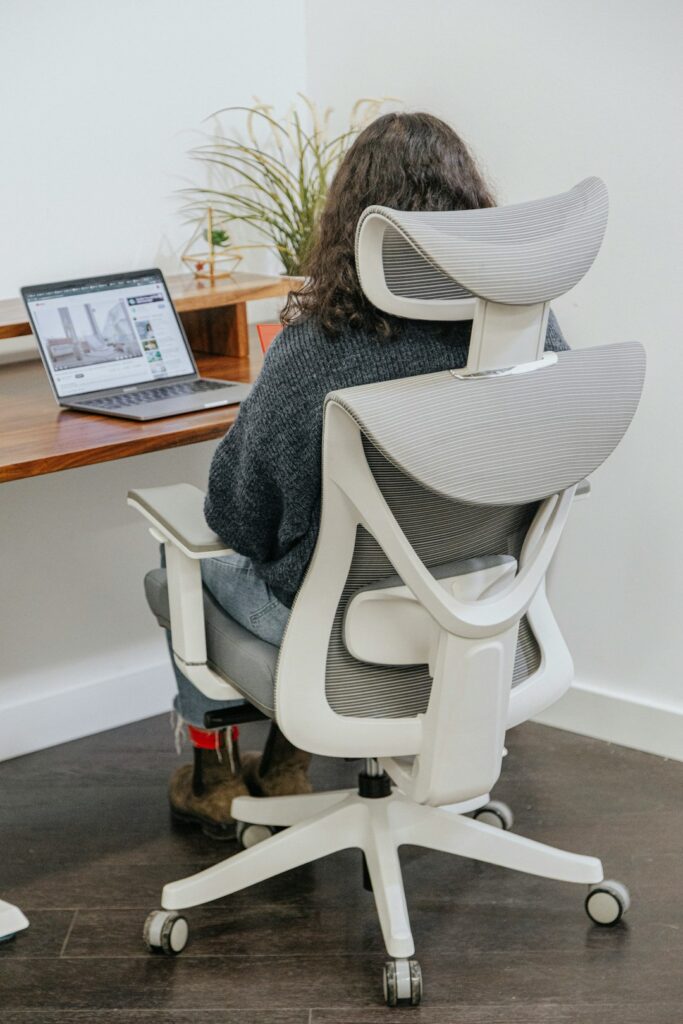
What makes a workspace spine-friendly?
A spine-friendly workspace supports a neutral posture, allows frequent movement, and reduces the need to reach, twist, or hold the head in one position for long periods. The goal is not to sit perfectly still. It is to create a setup that makes comfortable movement easier throughout the workday.
A useful workspace should allow:
- Feet to rest securely on the floor or on a stable footrest
- Knees to remain roughly level with the hips
- Shoulders to stay relaxed rather than lifted
- Elbows to remain close to the body
- The screen to sit near eye level
- Frequently used items to remain within easy reach
These adjustments can help reduce common sources of neck, upper-back, lower-back, wrist, and shoulder strain.
How high should a desk and chair be?
The chair should be adjusted first, because the chair determines the position of the hips, knees, and feet. Sit with the back supported and adjust the height until the feet rest comfortably on the floor. If the feet dangle, use a firm footrest rather than balancing on the chair or tucking the legs underneath.
The knees should be bent comfortably, usually near a right angle, without pressure behind them. The thighs should be supported by the seat, but the front edge of the chair should not press sharply into the backs of the knees.
A desk is generally a workable height when the forearms can rest near horizontal while the shoulders remain relaxed. If the desk is too high, the shoulders may creep upward and the wrists may bend. If it is too low, the torso may collapse forward.
Many fixed-height desks cannot be adjusted enough for every person. In that situation, a stable cushion, footrest, keyboard tray, or monitor riser may correct one part of the setup without replacing the entire desk.
Where should a computer monitor be placed?
The main monitor should be directly in front of the body, not angled far to one side. The top edge of the screen should be near eye level, although people who wear bifocal or progressive lenses may need the screen somewhat lower to avoid repeatedly tilting the head backward.
The viewing distance should allow text to be read without leaning forward. Increasing the text size is often more helpful than moving the monitor closer. A screen that is too far away encourages forward head posture, while a screen that is too close may cause eye fatigue.
For two monitors, place the monitor used most often directly in front. If both are used equally, center the space between them and turn the chair rather than repeatedly twisting the neck.
Glare also affects posture. Bright windows, overhead lighting, or reflective surfaces can make a person lean, squint, or crane the neck. In Lansing, changing daylight through the seasons may make monitor placement and window coverings worth revisiting during the year.
What is the healthiest way to use a laptop?
A laptop is convenient but difficult to position well for long periods because the screen and keyboard are attached. Raising the screen to eye level usually forces the keyboard too high, while keeping the keyboard comfortable often leaves the screen too low.
For extended laptop use, place the laptop on a stand or stable riser and use a separate keyboard and mouse. This allows the screen to be positioned independently from the hands and arms.
For short tasks, it is reasonable to use the built-in keyboard. The concern is prolonged, uninterrupted use in a hunched position. Alternating between sitting, standing, walking, and brief pauses is more useful than searching for one “perfect” posture.
How often should someone move during computer work?
Frequent movement matters more than maintaining one posture all day. Even a well-adjusted chair cannot prevent stiffness if the body remains still for several hours.
A practical approach is to change position every 20 to 30 minutes. The change can be brief:
- Stand while reviewing a document
- Walk to get water
- Roll the shoulders gently
- Look across the room
- Shift from sitting to standing
- Perform a few slow neck or upper-back movements
Short movement breaks can be connected to routine tasks, such as phone calls, meetings, printing, or waiting for a file to load. A timer may help at first, but the long-term goal is to notice stiffness before it becomes intense.
Standing desks can be useful, but standing in one rigid position for hours may also cause discomfort. Standing should be treated as another position to alternate with sitting, not as a complete replacement for movement.
How should the keyboard and mouse be positioned?
The keyboard should be close enough that the elbows remain near the sides of the body. The wrists should stay relatively straight, with the hands aligned with the forearms. Avoid reaching forward for the mouse or placing it so far to the side that the shoulder must rotate outward.
A wrist rest may provide comfort during pauses, but it should not force the wrists upward while typing. The hands should move freely, and the shoulders should remain relaxed.
For people who use a mouse frequently, alternating hands occasionally or using keyboard shortcuts can reduce repetitive loading. Any new arrangement should be introduced gradually rather than changing everything at once.

Does a chair need special features?
A chair does not need to be expensive to support comfortable work. Adjustability and fit are more important than appearance.
Useful features may include:
- A seat height that allows the feet to rest securely
- A backrest that supports the natural curve of the lower back
- A seat depth that leaves room behind the knees
- Armrests that allow the shoulders to relax
- A stable base that does not wobble or roll unexpectedly
Armrests should not prevent the chair from moving close to the desk. If they force the elbows outward or cause the shoulders to lift, they may be set too high or may not suit the desk.
For remote workers in area households, temporary workstations at kitchen tables, counters, or spare rooms often create special challenges. A folded towel for limited lumbar support, a separate keyboard, or a footrest can improve the setup without making permanent changes to the home.
What common workspace habits increase strain?
Several habits can quietly increase discomfort:
- Working from a couch with the laptop on the lap for hours
- Holding a phone between the ear and shoulder
- Reading from a screen placed far to one side
- Sitting on one leg or crossing the legs in the same direction all day
- Reaching repeatedly for supplies behind the body
- Ignoring a chair that tilts or sinks
- Working through increasing pain without changing the setup
These habits do not automatically cause injury, but they can place more demand on certain muscles and joints. Changing the environment is often more effective than simply trying to “sit up straight.”
When should discomfort be evaluated?
Mild stiffness that improves with movement may reflect prolonged positioning. Persistent or worsening symptoms deserve more attention, especially when they interfere with sleep, work, walking, grip, or daily activities.
Prompt medical evaluation is appropriate for symptoms such as sudden weakness, loss of coordination, numbness that spreads or worsens, severe pain after an injury, or changes in bladder or bowel control. These signs should not be managed only by adjusting a chair or desk.
For everyday workspace discomfort, begin with one or two changes: raise the screen, bring the mouse closer, adjust the chair, or add regular movement breaks. Observe what improves and make further changes gradually.